Are you missing out on important updates from your favorite Instagram accounts? You may have accidentally muted their Notes, a valuable feature that allows you to stay connected and informed.
In this guide, we’ll walk you through the simple steps ”How to unmute Notes on Instagram and ensure you never miss another important message.
Ig Notes offers a quick and easy way to share short text updates with your followers.
Whether you’re announcing exciting news, asking for advice, or simply sharing your thoughts, Notes provide a casual and engaging way to connect with your community.
However, if you’ve muted Notes from certain accounts, you might be missing out on valuable content and conversations.
Don’t let muted Notes hinder your Instagram experience.
By following the steps outlined in this guide, you can easily unmute Notes and start receiving updates from the accounts you care about most.
Let’s dive in and discover how to unlock the full potential of Instagram Notes.
Quick Fix: How to Unmute Instagram Notes (30-Second Method)
If you have stopped seeing short text updates at the top of your direct message (DM) inbox, you likely have the Instagram Notes feature muted for specific users.
Restoring these updates is a straightforward process that can be accomplished in under a minute using either a direct profile search or your account’s global settings.
The Profile Shortcut (Best for Single Accounts)
For a targeted approach, use the Search function to navigate directly to the user’s profile. Once there, tap the Following button, select Mute, and toggle the Notes switch to the “off” position (the switch should change from blue to grey).
This immediately reinstates their 60-character updates at the top of your chat list.
The Settings Dashboard (Best for Bulk Unmuting)
If you have muted multiple accounts and want to review them all at once, navigate to your own profile and open the Settings and Privacy menu.
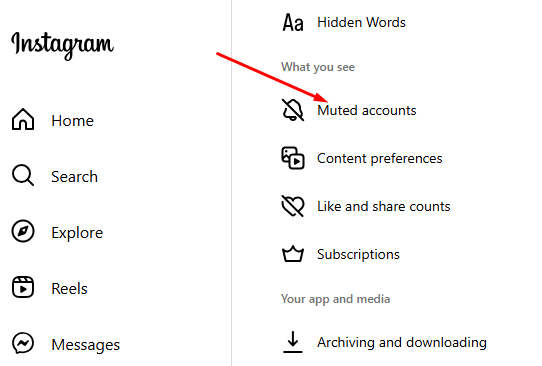
Under the “What you see” section, select Muted accounts. This dashboard provides a comprehensive list of every profile you have silenced, allowing you to tap Unmute and disable the Mute notes toggle for several people in one session.
How To Unmute Notes On Instagram
Method 1: Unmuting Notes From The User’s Profile
This is the most common method for users who remember exactly whose updates they are missing. To unmute Notes from a specific user’s profile on Instagram, follow these steps:
- 1. Open the Instagram app: Launch the Instagram application on your Android or iOS device and login into your account.
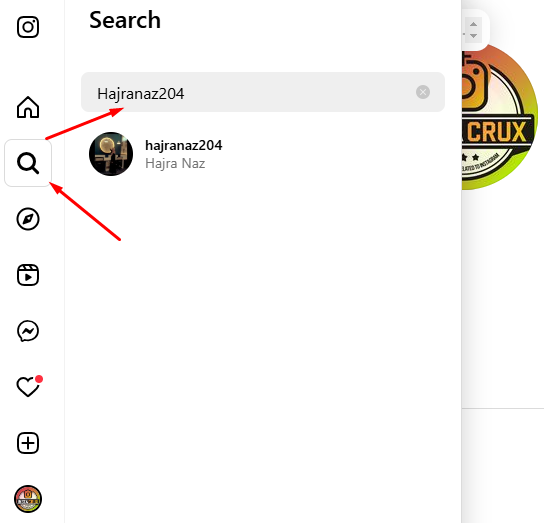
- 2. Tap the magnifying glass (Search) icon at the bottom of the screen.
- 3. Type the username and enter their profile.
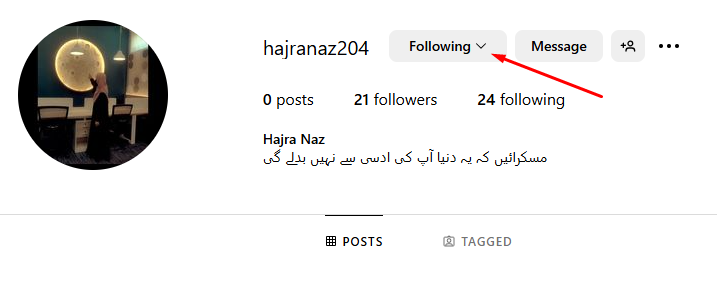
- 4. Tap the Following button located next to the “Message” button.
- 5. This will open a menu with several options.
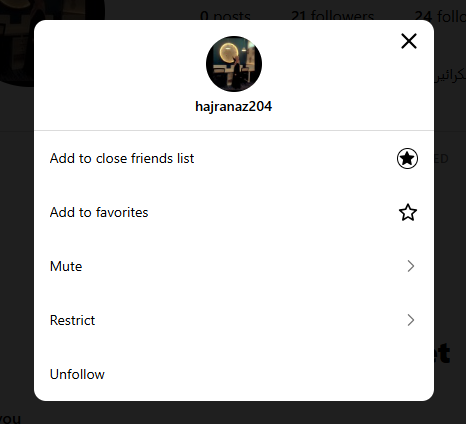
- 6. Select “Mute”: Choose the “Mute” option from the menu that appears. This will take you to the “Mute” settings for that user.
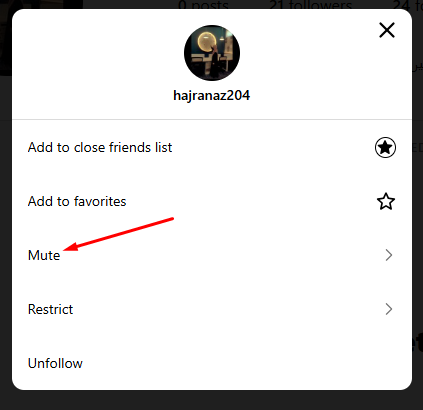
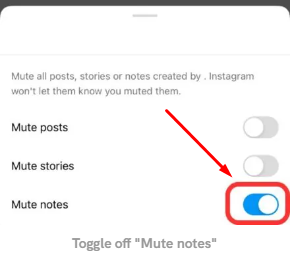
- 7. Turn off the toggle for “Notes”: Locate the toggle switch next to “Notes” and tap it to turn it off. The toggle will change color from blue to gray, indicating that Notes are now unmuted.
Once you've completed these steps, you will have successfully unmuted the user's Notes. You'll now receive notifications for their Notes and can engage with them as usual.
Additional Tips
- Check your internet connection: Ensure you have a stable internet connection before attempting to unmute Notes.
- Update the Instagram app: Make sure you’re using the latest version of the Instagram app for optimal performance.
- Review your muted accounts regularly: Periodically check your muted accounts list to see if there are any accounts you may want to unmute.
- Use the search bar: If you can’t remember the exact username of a muted account, use the search bar to find it.
- Be mindful of your notifications: Unmuting too many accounts can lead to overwhelming notifications. Consider carefully which accounts are most important to you.
- Experiment with different settings: Try muting or unmuting specific types of content (e.g., Stories, Posts, or Notes) to customize your Instagram experience.
Don't forget to wish your friends a happy birthday with one of these 250 creative captions. Find them in our Best Birthday Captions For Instagram post
Method 2: Unmuting Notes From Instagram Settings
If you’re unsure which accounts you’ve muted or need to unmute multiple accounts at once, you can access the “Muted Accounts” section in your Instagram settings:
- 1. Go to your Profile page by tapping your icon in the bottom right.
- 2. Tap the hamburger menu (three horizontal lines) in the top right.
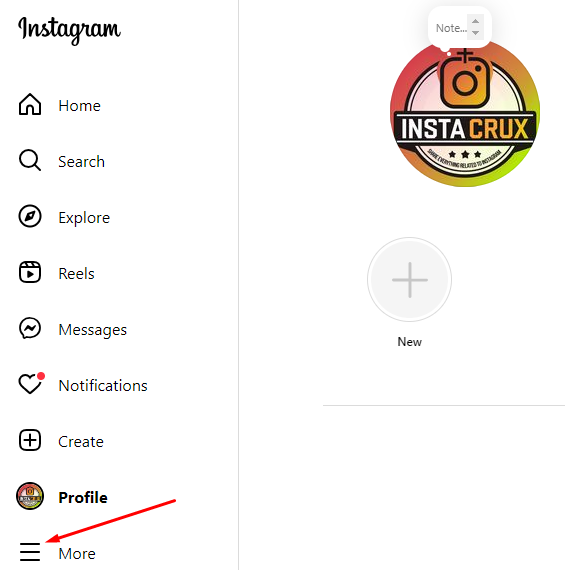
- 3. Select Settings and privacy.
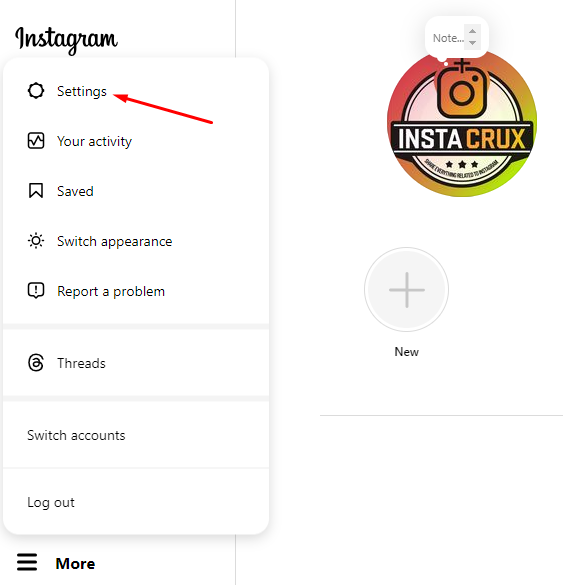
- 4. Find and tap Muted accounts.
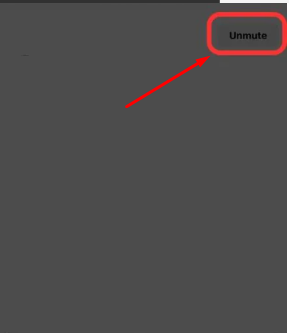
- 5. Tap Unmute next to the desired account.
- 6. Turn off the Mute notes toggle.
Additional Tips
- Use the search bar: If you can’t remember the exact username of a muted account, you can use the search bar to find it.
- Be mindful of your notifications: Unmuting too many accounts can lead to overwhelming notifications. Consider carefully which accounts are most important to you.
- Experiment with different settings: Try muting or unmuting specific types of content (e.g., Stories, Posts, or Notes) to customize your Instagram experience.
By following these steps and considering the additional tips, you can effectively manage your muted accounts and ensure you're receiving the content you want to see on Instagram.
By unmuting Notes, you can enhance your overall Instagram experience and stay connected with the people and content that matter most to you.
- Stay informed: Stay up-to-date with the latest news, announcements, or personal updates from your favorite accounts.
- Engage with your community: Participate in discussions, respond to questions, and show support for others.
- Discover new content: Unmute Notes from accounts you might not have followed before to discover new perspectives and interests.
- Strengthen connections: Build stronger relationships with your followers by engaging with their Notes and sharing your own thoughts.
- Avoid missing out: Ensure you don’t miss any important messages or opportunities that might be shared through Notes.
Method 3: The “Notes on Posts and Reels” Distinction
Instagram has expanded Notes beyond the DM inbox to include Notes on posts and reels. When unmuting through a user’s profile, you may see a separate toggle for this feature.
If you wish to see their comments and reactions on specific media content in addition to their DM-top updates, ensure this specific toggle is also disabled.
What Are Instagram Notes?
Instagram Notes is a relatively new feature that allows users to share short, ephemeral text messages with their followers.
Unlike traditional posts or Stories, Notes are designed for quick and casual communication.
IG Notes act as a hybrid between a Story and a Tweet (now X), providing a low-pressure way to share fleeting thoughts.
They appear at the top of your direct message inbox and are visible to your followers or specific groups of people, depending on your privacy settings.
Key Features – Character Limits and Expiration Rules
- Ephemeral: Notes disappear after 24 hours, making them ideal for sharing fleeting thoughts or updates.
- Short-form: Notes are limited to 60 characters, encouraging concise and direct communication.
- Personalized: You can choose who can see your Notes, allowing for more targeted sharing.
Audience Segmentation: Followers vs. Close Friends
When a user posts a Note, they choose their audience: either followers they follow back (mutuals) or their Close Friends list.
If you are not a mutual follower or on their Close Friends list, you will not see their Notes even if they are unmuted.
Interaction Logic: How Replies Become DMs
Notes are designed to foster active engagement. If you tap on a friend’s Note to reply, your response is delivered as a standard Direct Message (DM), initiating a private conversation thread.
Why Use Instagram Notes
- Stay connected: Share quick updates, ask questions, or engage in casual conversations with your followers.
- Share personal thoughts: Express your feelings or opinions in a more intimate setting.
- Promote engagement: Encourage your followers to respond to your Notes and start conversations.
Instagram Notes offers a refreshing alternative to traditional social media posts. Their ephemeral nature and personalized sharing options make them a valuable tool for building stronger connections with your followers.
Technical Breakdown: How Unmuting Works Behind the Scenes
Unmuting is more than a UI toggle; it involves data synchronization between your device and Meta’s servers.
App Cache and Local Storage Roles
Sometimes, even after unmuting, a Note might not appear because your phone is displaying cached data. The app “remembers” the muted state to save bandwidth.
Clearing your app cache in your phone’s system settings can force the app to fetch the most recent visibility permissions from the server.
Why Activity Status Affects Note Propagation
In some instances, having your Activity Status disabled can cause slight delays in how real-time features like Notes refresh.
Toggling this feature on can sometimes resolve issues where changes to mute settings don’t seem to take effect immediately.
Server-Side Syncing vs. Client-Side UI Changes
When you flip the unmute switch, a request is sent to Instagram’s servers.
While the UI switch turns grey instantly, there may be a slight delay (latency) before the server pushes the unmuted content back to your DM tray.
Privacy and Security: The “Invisible” Mute/Unmute
Instagram prioritizes user privacy to prevent social awkwardness when managing feed clutter.
The Zero-Notification Guarantee
Instagram does not notify users when they are muted or unmuted. You can silence a prolific poster and later restore their updates without them ever knowing their content was hidden from you.
Protecting Your Digital Well-being Without Losing Connections
Muting is a tool for digital well-being, allowing you to reduce “noise” and overwhelm without the finality of unfollowing or blocking someone. It allows you to set personal boundaries while maintaining the social connection.
Platform Limitations & Boundaries
Not all versions of Instagram support the full management of Notes.
Why You Can’t Unmute on Instagram Web or Desktop
While you can often view Notes on a web browser, the unmute functionality is currently restricted to the mobile applications. If you attempt to manage muted accounts via a desktop browser, you may find the specific “Notes” toggle missing or non-functional.
Restrictions on Instagram Lite and Older App Versions
Instagram Lite and older versions of the standard app often lack the full suite of Note features. If your app is outdated, you may experience “pesky bugs” or missing menus. Always ensure you are running the latest version from the App Store or Play Store for the best experience.
Advanced Troubleshooting: Unmuted But Still Not Seeing Notes?
If you have unmuted an account but the top of your DM tray remains empty, several factors could be at play.
Investigating the “Notes Ghosting” Phenomenon
- No Active Note: The most common reason is simply that the user has not posted a Note in the last 24 hours.
- Audience Exclusion: They may have shared their latest Note only with “Close Friends,” and you are not on that list.
- Update Required: Your app version might be failing to render the newest Note updates.
How to Clear App Cache for Instant Refresh (Android/iOS)
If you suspect a technical glitch, clearing the cache is the primary fix. On Android, go to Settings > Apps > Instagram > Storage > Clear Cache. On iOS, you typically need to “Offload” the app or delete and reinstall it to clear deep cache files.
Distinguishing Between a Muted Note and a Restricted Profile
If you can see their profile but not their Notes, they might have Restricted you.
Restriction is different from muting; it limits your ability to see when they are online or if they have read your messages, and it can also affect Note visibility.
If they have Blocked you, you will not be able to find their profile at all.
Forced Synchronization via Logging Out/In
For a “hard reset” of your account’s feature state, log out of Instagram and log back in. This forces a complete refresh of your account data and often resolves persistent syncing issues.
Best Practices for Managing Your DM Feed
Efficiently using the mute and unmute features can significantly improve your social media experience.
Strategic Muting for Reduced Digital Noise
Use muting as a temporary measure during busy work weeks or periods of high stress. By silencing non-essential updates, you can focus on core communications without losing the ability to reconnect later.
Using Notes for Engagement and Networking
Once unmuted, use Notes to actively engage with your network. For influencers or brands, Notes provide a non-intrusive way to announce new content or offers, creating a sense of urgency due to their 24-hour lifespan.
Common Misconceptions About Instagram Muting
There are several myths regarding how muting affects your overall account health.
Does Muting Notes Affect the Algorithm?
No. Muting someone’s Notes generally does not penalize their standing in your primary feed algorithm. You will still see their regular posts and Reels based on your overall interaction history with them.
Muting vs. Restricting vs. Blocking: Key Differences
- Muting: You stay followers; you just hide their content from your view.
- Restricting: A “soft block” where their comments are hidden and they can’t see your online status.
- Blocking: Completely severs the connection; neither party can see the other’s profile.
Frequently Asked Questions
Q: Can I unmute multiple accounts at once?
A: Yes, you can unmute multiple accounts at once by following the steps outlined in Method 2: Unmuting Notes from Instagram Settings.
Q: What if I can’t find the account I want to unmute?
A: Use the search bar in the Instagram app to find the account’s username. If you’re still having trouble, try searching for the account on Instagram’s Explore page or through your mutual friends.
Q: Will unmuting Notes affect my other settings?
A: Unmuting Notes will only affect your settings for that specific account. It will not affect your other Instagram settings or preferences.
Q: Can I unmute Notes from a specific account without unmuting their other content (e.g., Posts, Stories)?
A: Yes, you can selectively mute or unmute Notes from individual accounts without affecting their other content.
Q: What should I do if I’m still unable to unmute Notes?
A: If you’ve tried all the troubleshooting steps and are still having issues, reach out to Instagram’s support team for further assistance. They can help you identify and resolve any underlying problems.
Q: Can I unmute Notes on the Instagram web version?
A: Yes, you can unmute Notes on the Instagram web version by following the same steps as on the mobile app.
Q: Will unmuting Notes affect my privacy settings?
A: Unmuting Notes will not affect your overall privacy settings. However, you may want to review your privacy settings to ensure they align with your preferences.
Q: Can I mute or unmute Notes from a specific account without following or unfollowing them?
A: Yes, you can mute or unmute Notes without affecting your following status. This allows you to control which content you see from specific accounts without affecting your overall connections.
Conclusion
By following the steps outlined in this guide, you can easily unmute Notes on Instagram and stay connected with your favorite accounts.
Unmuting Notes allows you to stay informed, engage with your community, and discover new content.
Remember to review your muted accounts regularly and adjust your settings as needed to ensure you’re receiving the content that matters most to you. With a little effort, you can fully customize your Instagram experience and make the most of this valuable feature.
Take action today and unmute Notes on Instagram to unlock a world of opportunities and connections.