Ever tried snapping the perfect selfie on Instagram, only to wish you had a few extra seconds to strike your pose? Yep—been there, done that.
A few weeks ago, I was trying to record a quick Reel for a brand collab. I had everything set—good lighting, great outfit, catchy music—but I kept fumbling to hit the record button and get into position in time. That’s when I discovered Instagram’s built-in Reels timer, and trust me—it was a game changer. Since then, timers have become my secret weapon for polished, hands-free content that still feels effortless.
While Instagram doesn’t offer a native timer for snapping still photos, it does let you set a countdown for Reels, giving you a few seconds to prep before the camera starts rolling. And even though selfies with the Instagram camera don’t have a built-in timer, easy workarounds are using your phone’s camera or third-party apps.
Plus, if you’re just getting started with Instagram content, learning how to get more followers on Instagram can help you grow your reach while you’re perfecting your shots.
In this guide, I’ll walk you through all the ways you can set a timer on Instagram—whether you’re creating Reels, Stories, or want to upload a hands-free selfie that doesn’t look rushed.
Does Instagram Have a Built-in Timer?
Yes and no. Instagram includes a built-in timer, but only for Reels. That means if you’re hoping to snap a hands-free photo directly from the Instagram camera, you’re out of luck. However, simple alternatives are using your phone’s default camera app or adding countdown stickers for Stories. Let’s break it all down step by step.
If you’re still confused about certain Instagram symbols, like the dotted circle, you’re not alone. Understanding those visuals helps you navigate the app better while using features like timers.
Method 1: How to Set a Timer on Instagram Camera for Reels (Android & iPhone)
The Reel’s camera is where the magic happens if you’re looking for a built-in timer.
Steps:
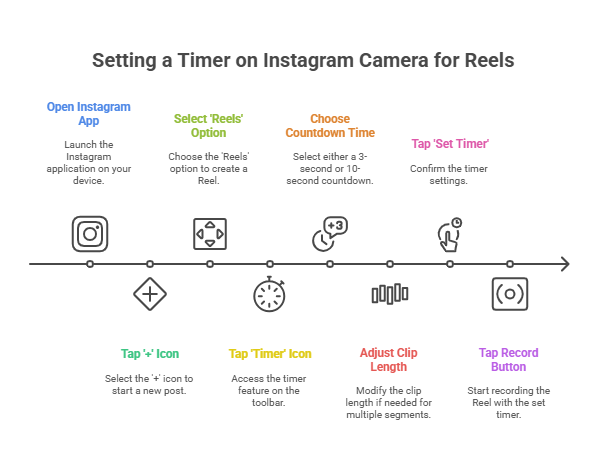
- Open the Instagram app.
- Tap the ‘+’ icon at the top right or swipe right on the home screen.
- Select the ‘Reels’ option from the menu at the bottom.
- On the left-side toolbar, tap the ‘Timer’ icon (a stopwatch symbol).
- Choose either a 3-second or 10-second countdown.
- You can also adjust the clip length if you’re recording in multiple segments.
- Tap Set Timer and then the record button.
Now, the countdown will begin, giving you a few seconds to get in position before recording starts.
Pro Tip: Want your Reels to stand out? Add trending audio, filters, and text overlays after recording. And if you’re not sure how to pause or control playback, learn how to pause Instagram Reels.
Method 2: How To Set a Timer for Instagram Stories Using the Countdown Sticker
While Instagram Stories don’t offer a built-in camera timer, you can still use the Countdown Sticker to add a timer effect to your Story for events, launches, or announcements.
Steps:
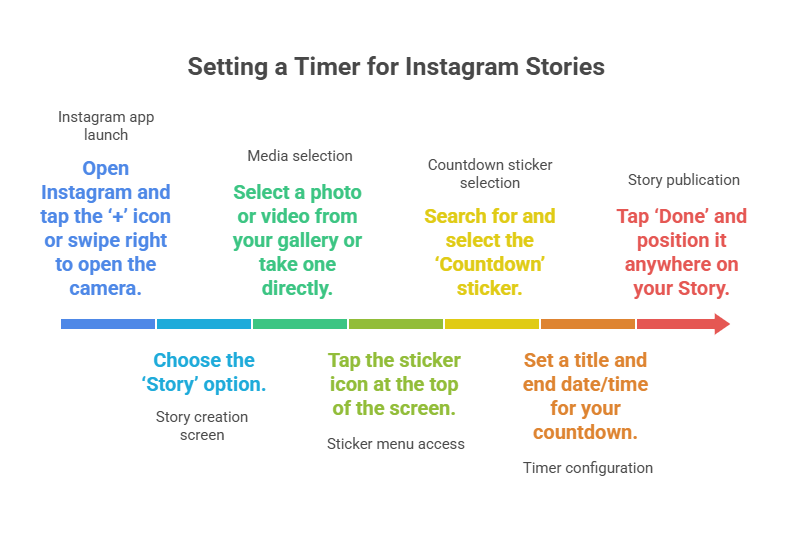
- Open Instagram and tap the ‘+’ icon or swipe right to open the camera.
- Choose the ‘Story’ option.
- Select a photo or video from your gallery or take one directly.
- Tap the sticker icon at the top of the screen.
- Search for and select the ‘Countdown’ sticker.
- Set a title and end date/time for your countdown.
- Tap ‘Done’ and position it anywhere on your Story.
This method won’t delay your photo capture, but it’s great for creating buzz around upcoming events or launches. And don’t forget—you can boost Story interaction by using features like Instagram birthday captions or themed countdowns.
Method 3: How To Set a Timer for Instagram Selfies or Photos (Using Phone Camera)
If you want to take a perfect selfie or photo and later upload it to Instagram, your phone’s default camera timer is your best friend.
Steps:
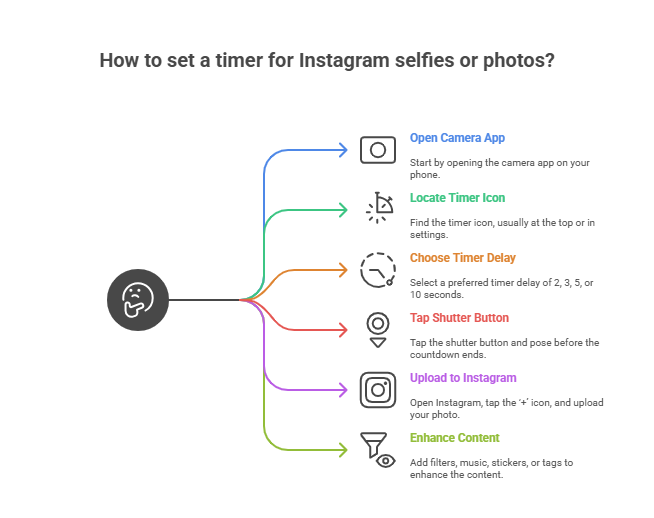
- Open the Camera app on your phone.
- Locate the Timer icon (usually found at the top of the screen or in settings).
- Choose your preferred timer delay: 2, 3, 5, or 10 seconds.
- Tap the shutter button, then strike a pose before the countdown ends.
- Once captured, open Instagram, tap the ‘+’ icon, and upload your photo to Story, Post, or Reels.
- Add filters, music, stickers, or tags to enhance the content.
Note: Some smartphones also offer gesture control, where you can show your palm or say “cheese” to trigger a timer.
Also curious if someone’s viewed your profile after checking out your content? Here’s how to know if Instagram notifies profile views.
Bonus Tip: Use Third-party Apps to Add Timers
If your built-in camera doesn’t have a timer or you need advanced features, try apps like:
- Camera+ 2 (iOS)
- Open Camera (Android)
- ProCam X
These apps allow customizable timers, multiple shots, and manual controls. You can record with them and then import your content into Instagram.
Respecting Privacy and Building Trust on Instagram
When using the timer to take content, especially involving others, keep the following in mind:
- Always get permission if others are in your frame.
- Avoid filming in restricted or private locations.
- Don’t use timer features to create misleading content.
Instagram thrives on authenticity. Use the timer as a tool to enhance your storytelling, not to fake perfection. And while you’re at it, brush up on Instagram privacy and safety tips to stay informed.
Final Thoughts
While Instagram doesn’t provide a universal camera timer, you can still achieve perfectly timed selfies, stories, and reels using built-in features and a few workarounds. From setting up countdowns for Reels to leveraging your phone’s native timer, you’ve got all the tools you need to level up your content.
Post with confidence, pose like a pro, and let the countdown begin!
FAQs
1. Can I set a timer on the Instagram camera to take selfies?
No, Instagram doesn’t have a built-in timer for taking selfies. Use your smartphone’s camera timer and upload the image to Instagram manually.
2. Where is the timer option for Instagram Reels?
You can find the timer icon (a stopwatch) on the left side of the screen when you open the Reels camera in Instagram.
3. What is the maximum countdown available for Reels?
You can choose between a 3-second and 10-second countdown for Reels.
4. Can I use the countdown sticker as a timer for selfies?
Not really. The countdown sticker is designed to count down to a future event—it doesn’t function as a camera timer.
5. Are there any third-party apps that help with Instagram timers?
Yes, apps like Camera+ 2, Open Camera, and ProCam X allow more flexible timer settings that you can use before uploading content to Instagram.
6. Why doesn’t Instagram have a built-in timer for photos?
Instagram focuses more on video content like Reels and Stories, so the timer is only available for Reels to enhance hands-free recording.